Advanced Web Design
Over at the DMCommunity a new challenge has been issues involving a web designer who want to optimize a list of features to implement to reach maximum value.
Advanced Web Design
A freelance webpage developer received a task. A client has a budget of $10,000 and wants a webpage developed with as many features as possible, but also maximizing the total value of these features:
<Table containing 10 features, each with a cost and value. Check out the original page to see it>
The client leaves the decision of which features to the developer. She wants to delight the client and asks you which features would be best to select. We have the budget constraint and two objectives. Can you devise a rational way to trade them against each other?
Now you have several additional requirements:
Features 3 and 4 can be chosen only together.
Feature 2 cannot be combined with Feature 3.
Only one of the features 8, 9, and 10 can be selected. Otherwise, the cost of each of these features will be increased by 10%.
If 5 or more features are selected, 5% discount is provided.
You still want to offer a design that maximizes the total value while minimizing the total cost.
As is always the case in cDMN, we start by building a glossary. Normally you’d build such a glossary organically, introducing each new concept right before you need it. However, for the purpose of this explanation, we show the entire glossary from the get-go.
We begin by declaring our types, which are domains of values. In this case, we only need a type to represent the features.
| Type | ||
|---|---|---|
| Name | Type | Values |
| Feature | Int | 1..10 |
Next, we define our functions, which you can think of as mappings from one domain to another. In this case, we introduce a function for the cost and value of each feature, and a function to represent when a (possible) surcharge of 10% applies.
| Function | |
|---|---|
| Name | Type |
| cost of Feature | Int |
| value of Feature | Int |
| surcharge for Feature | Real |
Similarly, we declare a few constants to use throughout the model. You can think of these as single values. In this case, we introduce some “house keeping” to keep track of the budget, total cost, number selected, etc.
| Constant | |
|---|---|
| Name | Type |
| budget | Int |
| total cost | Real |
| discounted cost | Real |
| nb selected | Int |
| total value | Int |
Lastly, we finish off our glossary by introducing a relation to denote which features are selected, and a boolean to denote when the two out of the three “premium” features are selected.
| Relation |
|---|
| Name |
| selected Feature |
| Boolean |
|---|
| Name |
| premium selected |
Having finished our glossary, we can continue with the rest of the model. First, let’s introduce our date tables (using hit policy D), which will represent all information we know from the start. In this case, we define the cost and value of each feature in one table, and then our starting budget in another.
| Feature info | |||
|---|---|---|---|
| D | Feature | cost of Feature | value of Feature |
| 1 | 1 | 5000 | 7 |
| 2 | 2 | 4000 | 6 |
| 3 | 3 | 3000 | 5 |
| 4 | 4 | 2000 | 4 |
| 5 | 5 | 1000 | 3 |
| 6 | 6 | 1000 | 2 |
| 7 | 7 | 1000 | 1 |
| 8 | 8 | 1000 | 1 |
| 9 | 9 | 1000 | 1 |
| 10 | 10 | 1000 | 1 |
| Budget | |
|---|---|
| D | budget |
| 1 | 10000 |
Alright, now we’re on to the actual decision logic of the model. Let’s start easy by introducing a constraint table to state that the total cost should be lower than our budget.
| Budget constraint | |
|---|---|
| E* | budget |
| 1 | ≥ discounted cost |
Next, let’s define the discounted cost. When 5 or more features are selected, then we have to reduce the total cost by 5%. In the other case they are simply the same.
| Discount? | ||
|---|---|---|
| U | nb selected | discounted cost |
| 1 | ≥ 5 | total cost * 0.95 |
| 2 | < 5 | total cost |
To count the number of selected features, we introduce a C+ table. This table can be read as “Count 1 for every feature that is selected”.
| Feature info | |||||
|---|---|---|---|---|---|
| C+ | Feature | selected Feature | nb selected | ||
| 1 | - | Yes | 1 | ||
This table shape can actually also be used to calculate our total cost and our total value. To save space, we can simply add more output columns for these variables as follows:
| Feature info | |||||
|---|---|---|---|---|---|
| C+ | Feature | selected Feature | nb selected | total cost | total value |
| 1 | - | Yes | 1 | cost of Feature * surcharge for Feature | value of Feature |
You can loosely think of each output column being a whole new table with only the inputs copied. We use this to define the total cost as the sum of the costs of each selected feature multiplied by its possible surcharge, and to define the total value as the sum of the values of all selected features.
The way we define this surcharge is also fairly straightforward. We have one table to decide if a surcharge should be applied (i.e., when at least 2 out of 3 of the “premium” features) have been selected, and another table to define the surcharge of each feature. Note that this first table could be modeled more generally using another C+-table, but sometimes it’s also worth it to just keep it simple. :-)
| Define premium | ||||
|---|---|---|---|---|
| U | selected 8 | selected 9 | selected 10 | premium selected |
| 1 | Yes | Yes | - | Yes |
| 2 | - | Yes | Yes | Yes |
| 3 | Yes | - | Yes | Yes |
| Define surcharge | |||
|---|---|---|---|
| U | Feature | premium selected | surcharge for Feature |
| 1 | not(8, 9, 10) | - | 1 |
| 2 | 8, 9, 10 | No | 1 |
| 3 | 8, 9, 10 | Yes | 1.1 |
Finally, we need to express the constraints on features 2, 3 and 4. As you might’ve expected, this is quite straightforward using constraint tables: we express that 2 and 4 should always be selected together, and that 2 and 3 may never be selected together.
| Feature constraint | ||
|---|---|---|
| E* | selected 3 | selected 4 |
| 1 | Yes | Yes |
| 2 | No | No |
| Feature constraint | ||
|---|---|---|
| E* | selected 2 | selected 3 |
| 1 | Yes | No |
And that’s it! We can now ask the cDMN solver to find us solutions. For instance, by maximizing the total value we’d now get the following solutions:
Model 1
==========
surcharge_for_Feature := {1 -> 1, 2 -> 1, 3 -> 1, 4 -> 1, 5 -> 1, 6 -> 1, 7 -> 1, 8 -> 11/10, 9 -> 11/10, 10 -> 11/10}.
total_cost := 10200.
discounted_cost := 9690.
nb_selected := 7.
total_value := 17.
selected_Feature := {3, 4, 5, 6, 7, 9, 10}.
premium_selected := true.


More models may be available.  Change the max argument to see them.

Elapsed time: 0.093s
Interestingly, though it might seem contra-intuitive to select more than 2 of the premium features, the discount received for having more than 5 features seems to more than make up for it, allowing for a total value of 17.
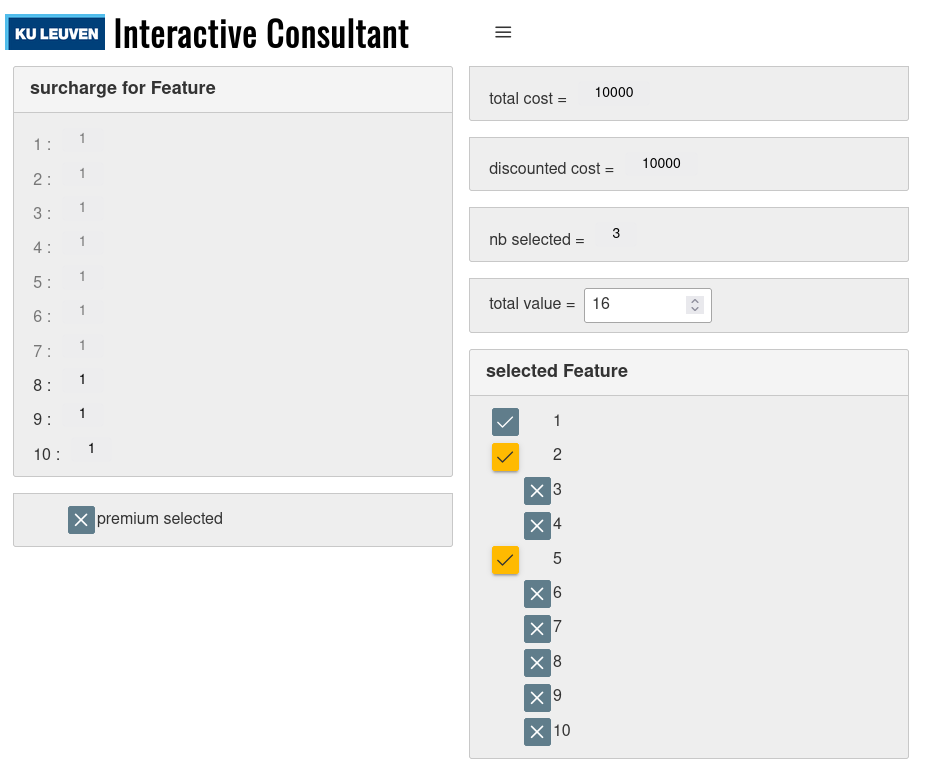
Of course, our web designer is not interested in only finding the solution with the best value, but will also be interested in finding solutions with a different cost-value trade-off. Using our Interactive Consultant tool, she’s able to do just that! You can try so for yourself in our online environment by clicking this link, and then going to “Interactive Consultant” at the top. Here, you’ll be greeted by a screen in which you can interactively set any of the variables of the problem domain. For instance, it allows you to manually select a predefined list of features you’d like to in-/exclude, after which you can optimize the total value.
For instance, the following screenshot shows the situation after manually selecting feature 2 and 5, and letting the IC find the optimal value afterwards by clicking on the up-arrow. Feel free to play around with the model yourself!